
Before we dive in, why not take a quick peek at my portfolio: https://priyalraj.com
📋 TL;DR: What You’ll Learn Here
What package.json & package-lock.json each actually do, with a real example.
What
^&~mean, & why “^ means latest” is a myth.npm ci vs npm install, & which one belongs in CI.
Why the lockfile became a security tool after the 2025 npm attacks.
🤔 The Short Answer
package.json = what you’re willing to accept. Version ranges, written by you.
package-lock.json = what you actually got. Exact versions of every package in the tree, written by npm.
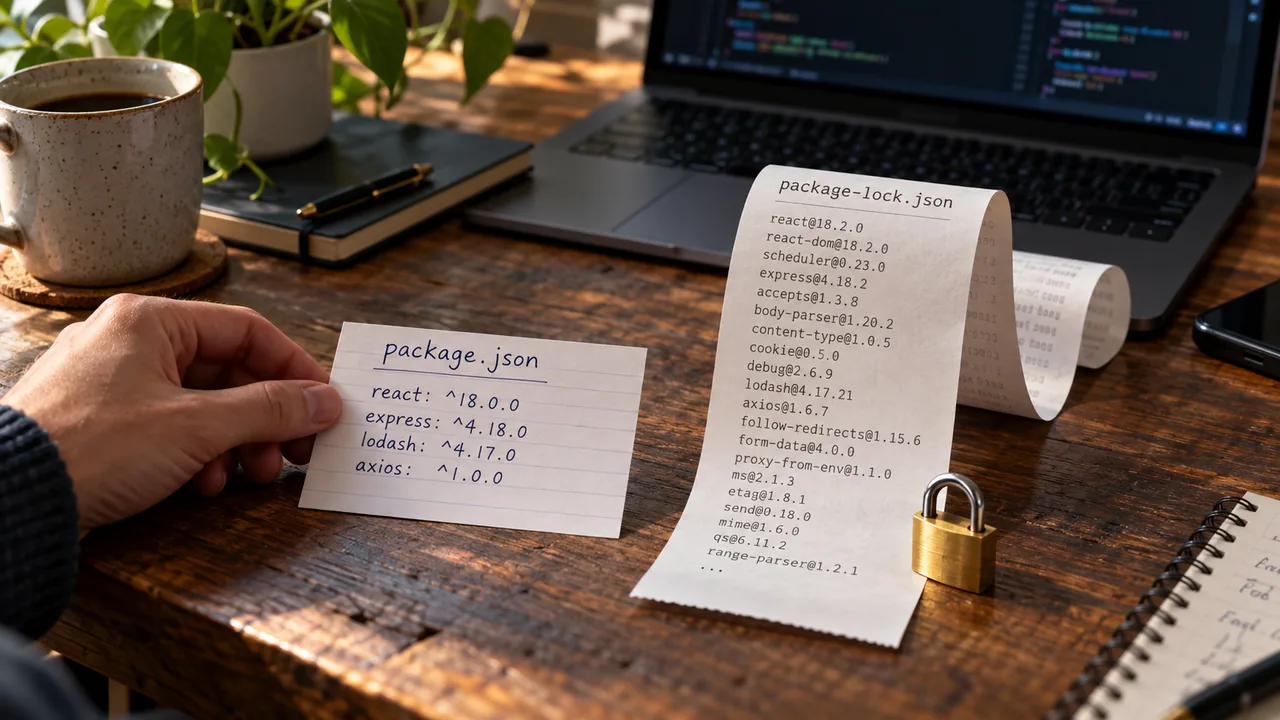
Think of it like ordering food. package.json says “any pizza, medium size, no olives”. The lockfile is the bill: exactly which pizza, from which kitchen, with a receipt number. Next time you want the same pizza, you show the bill, not the vague order.
📦 package.json: Your Intent
This file describes your project & the version ranges you allow:
// package.json
{
  "name": "my-app",
  "version": "1.0.0",
  "type": "module",
  "scripts": {
    "dev": "next dev",
    "build": "next build"
  },
  "dependencies": {
    "next": "^16.1.0",
    "zod": "~4.1.0"
  },
  "devDependencies": {
    "typescript": "5.9.3"
  },
  "engines": {
    "node": ">=22"
  }
}
The fields you’ll touch most:
| Field | What it’s for |
|---|---|
dependencies | Needed at runtime |
devDependencies | Only for building/testing (TypeScript, linters) |
peerDependencies | “My package needs your copy of X” (installed by default since npm 7) |
scripts | npm run dev, npm run build, etc. |
engines | Supported Node versions. Advisory only, unless engine-strict is on |
overrides | Force a version of a nested dependency. Only works in the root package.json |
Notice "next": "^16.1.0". That is not a version. It’s a range. Which brings us to the most misunderstood characters in JavaScript.
🎯 ^ vs ~ (Caret vs Tilde)
When you run npm install zod, npm saves it with ^ by default. Here’s what each symbol allows:
| You write | Allows | Example match |
|---|---|---|
^1.2.3 | >=1.2.3 <2.0.0 | 1.9.0 ✅, 2.0.0 ❌ |
~1.2.3 | >=1.2.3 <1.3.0 | 1.2.9 ✅, 1.3.0 ❌ |
1.2.3 | Exactly 1.2.3 | Only 1.2.3 |
^0.2.3 | >=0.2.3 <0.3.0 | 0.2.9 ✅, 0.3.0 ❌ |
* | Anything | Please don’t 😅 |
Rule of thumb: ^ allows minor + patch updates, ~ allows patch updates only.
That ^0.x row trips people up. Under semver, anything in 0.y.z can change at any time, so npm plays it safe: for 0.x versions, ^ behaves like ~.
“^ means latest” is a myth. ^16.1.0 will never install Next.js 17. It stays below the next major.
My tip: Want exact versions saved by default? Run npm install -E <pkg>, or add save-exact=true to your .npmrc.
🔒 package-lock.json: What You Actually Got
Here’s the problem with ranges. You install today & get zod 4.1.2. Your teammate installs next week & gets 4.1.5. Same package.json, different code. “Works on my machine” starts here.
The lockfile fixes that. It records the exact version of every package, including the hundreds of nested ones you never installed directly. Here’s what one entry looks like:
// package-lock.json (trimmed)
{
  "name": "my-app",
  "lockfileVersion": 3,
  "packages": {
    "": {
      "name": "my-app",
      "dependencies": { "zod": "~4.1.0" }
    },
    "node_modules/zod": {
      "version": "4.1.2",
      "resolved": "https://registry.npmjs.org/zod/-/zod-4.1.2.tgz",
      "integrity": "sha512-..."
    }
  }
}version: the exact version installed.resolved: where the tarball came from.integrity: a sha512 hash. npm checks the downloaded file against it, so if someone swaps the tarball, the install fails."": the root entry, which is your own project.
Which lockfileVersion do I have?
| lockfileVersion | Written by |
|---|---|
| 1 | npm 5 & 6 |
| 2 | npm 7 & 8 |
| 3 | npm 9+ (what you’ll see today) |
If you see a giant lockfile diff after a teammate’s commit, check this number first. Someone is probably on a very old npm.
Who wins when they disagree?
package.json wins. If the locked version still fits your range, npm uses the lock. If you change the range so the locked version no longer fits, npm installs a new version & updates the lock.
⚡ npm ci vs npm install
This is the part that actually matters day to day.
npm install | npm ci | |
|---|---|---|
| Needs a lockfile | No | Yes |
| Can change package-lock.json | Yes | Never |
| Can change package.json | Yes (when adding packages) | Never |
| If package.json & lock don’t match | Fixes the lock | Fails with an error |
| Existing node_modules | Reuses it | Deletes it first |
| Use it for | Local dev, adding packages | CI, Docker, deploys |
# local dev: adding or updating packages
npm install zod

# CI / Docker / production builds
npm ci
My tip: If your Dockerfile or GitHub Action runs npm install, switch it to npm ci. The build becomes reproducible, & if someone forgot to commit their lockfile change, CI fails loudly instead of silently installing something different.
Using another package manager? Same idea:
Yarn:
yarn install --immutable(on by default in CI).pnpm:
pnpm install --frozen-lockfile(on by default in CI).Bun:
bun ci, which isbun install --frozen-lockfile. Bun’s textbun.lockhas been the default since Bun 1.2. The old binarybun.lockbis legacy.
✅ Should You Commit package-lock.json?
Yes. npm’s own docs say it’s intended to be committed.
Apps (websites, APIs, anything you deploy): always commit it. That’s the whole point.
Libraries (packages you publish to npm): commit it too. It keeps your CI & contributors consistent. But know this: package-lock.json is never published, so your users don’t get your lockfile. Their own lockfile decides what they get, within your ranges.
❌ Don’t add package-lock.json to .gitignore.
❌ Don’t commit package-lock.json & yarn.lock & bun.lock together. Pick one package manager per project. Mixing them means each tool resolves its own tree, & now nobody knows which one production uses.
🔀 Fixing package-lock.json Merge Conflicts
Two branches both added packages, & now the lockfile is full of <<<<<<< markers. Don’t fix it by hand. Ever.
# 1. fix any conflict in package.json first (by hand, it's small)
# 2. let npm rebuild the lock from the merged package.json
npm install --package-lock-only

# 3. check the diff, then commit
git add package.json package-lock.json
npm has been able to resolve these conflicts itself since npm 5.7.0. --package-lock-only updates just the lockfile without touching node_modules, so it’s fast.
🗑️ “Just Delete the Lockfile” Is Bad Advice
Every Stack Overflow thread has someone saying “delete node_modules & package-lock.json, then reinstall”. It sometimes “works”, but here’s what actually happens: every nested dependency, hundreds of them, jumps to the newest version your ranges allow. All at once. With no review.
You might fix your one error & quietly pull in 40 other changes. Safer options:
# reinstall exactly what's locked
rm -rf node_modules && npm ci

# update one package within its range
npm update zod

# see what's outdated before updating
npm outdated
🛡️ Why Your Lockfile Is Now a Security Tool
This is where it gets real.
September 8, 2025:
chalk,debug& 16 other packages, around 2 billion weekly downloads combined, were hijacked after a maintainer fell for a phishing email from a fakenpmjs.helpdomain. The malicious versions were live for about 2 hours.September 2025: the Shai-Hulud worm hit 200+ packages, stealing credentials through install scripts & spreading itself.
November 2025: Shai-Hulud 2.0 hit 700+ packages & 25,000+ repos.
Here’s how a lockfile helps. If your lockfile pinned chalk to a safe version, npm ci during those 2 hours installed… the safe version. The integrity hash makes sure of it. Someone running a fresh npm install without a lock, or blindly running npm update, could get the bad one.
To be clear: a lockfile doesn’t make you safe. It stops your installs from silently drifting onto a new malicious version. You still need to review what you update.
Two more things to know
Install scripts are the real attack path. Shai-Hulud spread through
preinstall/postinstallscripts that run automatically on install. In CI, you can turn them off withnpm ci --ignore-scripts, orignore-scripts=truein.npmrc. Some packages that build native code need their scripts, so test before you flip it everywhere.Watch for lockfile injection. Lockfiles are huge & GitHub collapses their diffs, so a malicious PR can quietly point a
resolvedURL at an attacker’s server. Tools like lockfile-lint catch it in CI:
npx lockfile-lint --path package-lock.json --type npm --allowed-hosts npm --validate-https📝 My Checklist
✅ Lockfile committed, one package manager per project.
✅ CI & Docker use
npm ci, nevernpm install.✅ Lockfile conflicts fixed with
npm install --package-lock-only, never by hand.✅ Lockfile diffs in PRs actually get a look, especially
resolvedURLs.✅ Update deliberately:
npm outdated, thennpm update <pkg>, not “delete & pray”.
Final Thoughts
package.json is the wish list. package-lock.json is the receipt. One says what you’d accept, the other proves what you got.
For years the lockfile was the file everyone scrolled past in PRs. After 2025, it’s one of the cheapest security wins you have. Commit it, use npm ci, & stop deleting it every time something breaks. 🔒
If you enjoyed this article, please make sure to follow me on Twitter.


Priyal Raj
Full Stack Developer with 3+ years building production web apps for founders and product teams worldwide. I write about Next.js, Node.js, TypeScript, Redis, and everything in between.